How to Improve Your Gaming Setup: 12 Upgrades That Actually Matter
Most people assume a better gaming setup means a new graphics card and a $2,000 budget. The reality is different. Learning how to improve your gaming setup usually comes down to cheap, high-impact changes to your desk, posture, lighting, and cable layout rather than a full hardware overhaul. In this guide I’ll walk through 12 upgrades, roughly ranked from free to a few hundred dollars, so you can pick the ones that fit your space and budget.
How to Improve Your Gaming Setup Without Spending a Dime
Before you spend a dollar, fix the two issues that drag down almost every battlestation: cables everywhere and a monitor at the wrong height.
Tame Your Cables First
A desk buried in cables makes even expensive gear look cheap. Cable management kits cost $15 to $25 and include sleeves, clips, and adhesive trays. Route power and display cables together, label each end, and run everything along the back edge or underside of the desk. The visual payoff is instant, which is why cable management is the single most common advice in any “how to improve your gaming setup” thread.
Raise Your Monitor to Eye Level
Your eyes should line up with the top third of the screen. If your monitor sits too low, you will hunch forward and strain your neck within an hour. A VESA monitor arm costs $30 to $80, frees the desk surface entirely, and lets you adjust height and angle in seconds. Fixed risers cost under $20 if you want something simpler.
Build an Ergonomics Triangle That Prevents Pain
Comfort compounds over long sessions. A good chair, proper keyboard placement, and correct posture protect your wrists, back, and shoulders.
Chair Height and Lumbar Support
Your feet should rest flat and your knees should bend at roughly 90 degrees. If your chair lacks lumbar support, a $25 memory-foam cushion does most of the work of a $400 chair without the price tag. When you eventually upgrade, look for an adjustable backrest and seat depth rather than just “gaming” branding.
Mouse and Keyboard Position
Keep your keyboard and mouse at the same height, with your elbows close to your body. A wrist rest ($10 to $20) keeps your wrists neutral and reduces the risk of repetitive strain. If you play for hours at a time, these small cushions prevent genuine long-term injury.
Upgrade Your Sound Before Your Screen
Audio is the most underrated part of a gaming setup. Better sound improves immersion more than a slightly higher refresh rate for most people.
Ditch the Monitor Speakers
Built-in monitor speakers are thin and brittle. A proper pair of over-ear headphones or a quality headset ($50 to $150) delivers positional audio you can actually aim with. If you prefer speakers, a compact 2.0 set ($60 to $100) is a bigger upgrade than you expect.
Add a Dedicated USB DAC or Amp
If you already own good headphones, a $30 to $60 USB DAC or headphone amp often unlocks detail your motherboard’s onboard audio hides. This is a cheap, genuinely audible improvement for music, dialogue, and footsteps alike.
Fix Your Lighting the Right Way
RGB gets a bad reputation because people overdo it, but lighting is still a legitimate part of how to improve your gaming setup. Done well, lighting reduces eye strain and improves the room’s mood.
Bias Lighting Behind the Monitor
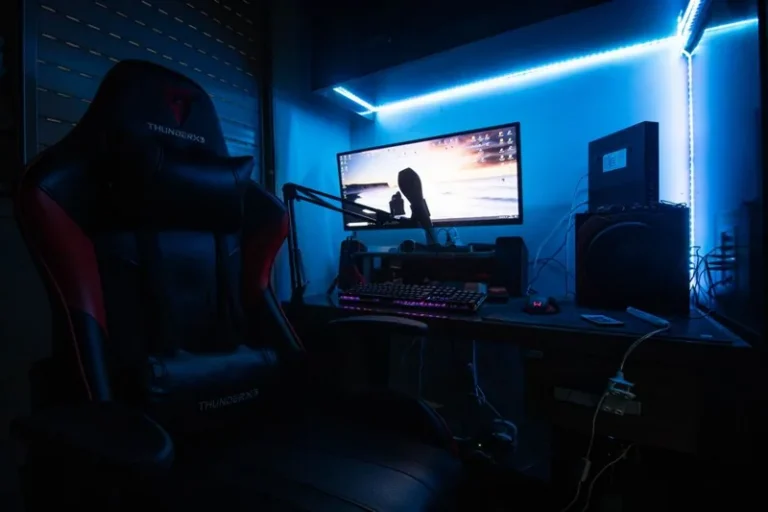
A warm, dim LED strip behind the monitor reduces the contrast between a bright screen and a dark wall, which cuts eye fatigue during night sessions. A quality bias-light strip costs $15 to $30 and is far more useful than rainbow lighting blasted at your face.
Add a Desk Lamp for Task Light
A small, adjustable desk lamp with a warm bulb ($20 to $40) helps you read manuals, find keycaps, and eat without turning on harsh overhead lights.
Improve Your Frame Rates With Settings, Not Money
Sometimes the fastest upgrade is free. Optimizing in-game settings and your Windows install can feel like new hardware.
Turn Down the Right Settings
Shadows, volumetric fog, and anti-aliasing often crush frame rates while barely changing how a game looks. Dropping these a notch can add 20 to 30 percent more frames on mid-range GPUs. Tools like rtings.com’s monitor recommendations and PCMag’s gaming performance guides are solid references when you want to dial in specifics.
Enable XMP/EXPO for Your RAM
Many systems run RAM below its rated speed because the profile is off in BIOS. Enabling XMP or EXPO is free and can add measurable frames in CPU-bound games. It is a five-minute fix most builders forget.
Prioritize Your Next Hardware Purchase
When you are ready to spend on actual components, spend where it counts for your games.
The GPU Is Usually the Best First Buy
For most games, the GPU delivers the biggest performance jump per dollar. Keep your budget realistic: the best price-to-performance cards for 1080p and 1440p sit in the $250 to $450 range, not the $700 flagship tier.
An SSD Beats Almost Everything Else
If you are still booting from a hard drive, an NVMe SSD is the single most noticeable upgrade you can make. Boot times, level loads, and general responsiveness all improve dramatically for around $40 to $80 per terabyte.
Small Touches That Pull a Room Together
The difference between a desk that feels “fine” and one that feels finished often comes down to details, and most solid advice on how to improve your gaming setup ends with these touches.
Define the Space
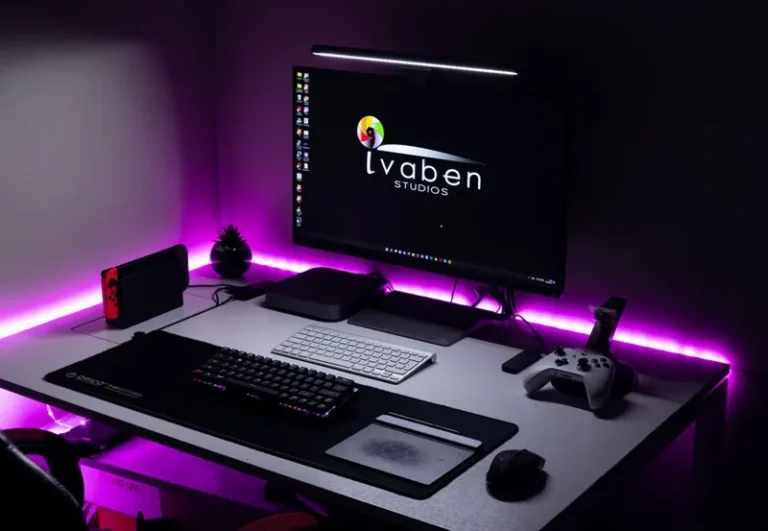
A simple desk mat ($15 to $30) gives your mouse a consistent surface and makes the whole setup look intentional. Consistent colors and a single headphone stand also help the room feel curated instead of random.
Manage Heat and Dust
A can of compressed air and a small desk fan cost pocket change. Cleaning filters every few months and keeping airflow clear extends the life of every component in your rig. See our guide on essential accessories for a gaming PC for a full checklist.
Level Up Your Room’s Comfort and Sound
Beyond the desk itself, the room plays a bigger role than most players admit, and it is the most overlooked part of learning how to improve your gaming setup.
Control Echo and Add a Rug
Hard floors and bare walls make every sound bounce, which muddies both your own audio and your mic. A rug under the chair and a few soft surfaces on the wall cost little and noticeably tighten sound. They also make the room feel warmer and more finished.
Keep a Headphone Hook or Stand
A $10 headphone stand or under-desk hook keeps your headset off the floor, protected from spills and cable damage. It is a tiny touch that protects a $100 to $200 purchase and keeps the desk clear.
When to Upgrade Your Monitor
Your screen is the single biggest visual bottleneck after the PC itself.
Match Refresh Rate to Your Frames
There is no point chasing a 240Hz monitor if your GPU only pushes 90 frames. A 1080p 144Hz IPS panel ($110 to $150) is the sweet spot for most mid-range builds, and a 1440p 165Hz panel ($200 to $300) is the next logical step. RTINGS.com publishes detailed monitor tests if you want measurements before you buy.
Prioritize Response Time and Color
For competitive play, a 1ms response time matters more than peak refresh rate. For story-driven games, color accuracy and contrast deliver the bigger wow factor. Decide which kind of player you are before spending.
Frequently Asked Questions
How much does it cost to improve a gaming setup?
Most of the upgrades above cost between $0 and $200. Cable management, monitor arms, bias lighting, and a decent headset cover the majority of the impact for under $150 total. A full refresh including a better chair and monitor sits closer to $400 to $600, which you can plan with our gaming setup under 500 breakdown.
What is the single best upgrade for a gaming setup?
If comfort is your bottleneck, a monitor arm and a chair with lumbar support make the biggest daily difference. If performance is the problem, an NVMe SSD or a GPU upgrade delivers the most frames per dollar.
Do I need RGB to improve my setup?
No. Functional bias lighting reduces eye strain, but aggressive RGB adds nothing to performance. Start with lighting that helps you see, then add accent light only if you like the look.
Is a gaming chair worth buying?
A quality ergonomic task chair often beats a similarly priced gaming chair on adjustability and build. If you prefer the aesthetic, choose a model with adjustable lumbar support and seat depth rather than buying on looks alone.
How often should I clean my setup?
Wipe down the desk weekly and clean PC filters with compressed air every two to three months. Dust buildup raises temperatures and shortens component life.
Conclusion
You do not need a huge budget to see real results. Knowing how to improve your gaming setup means fixing cables, posture, and lighting first, then spending on audio and storage before chasing a flagship GPU. Start with the free settings tweaks and cable cleanup today, then work down the list as budget allows.
Ready to plan a full refresh? Check out our guide to building a gaming setup under $500 and see our picks for the best gaming desk 2026 to give your new layout a proper foundation.