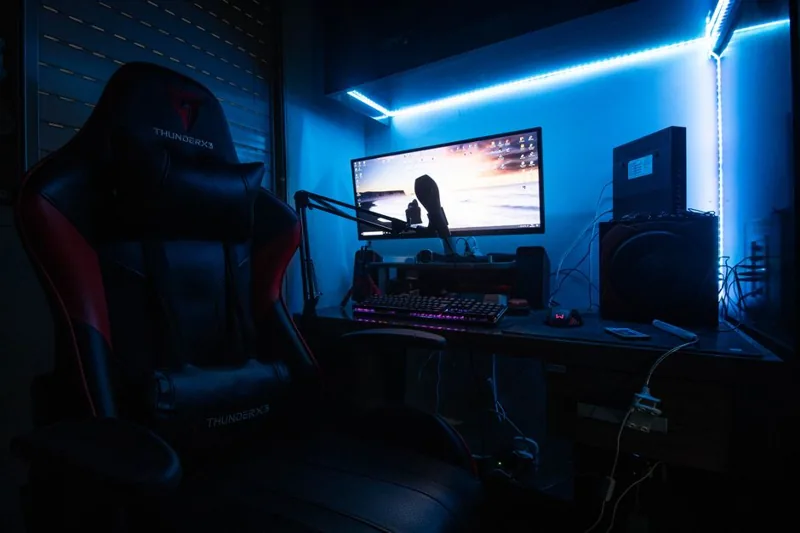
RGB Setup for Gaming PC: Build a Glow Room That Impresses
A great RGB setup for gaming PC looks effortless, but it is actually the result of a handful of deliberate choices: one lighting ecosystem, a restrained color palette, and synced components that all speak the same software. Get those three right and the room glows; get them wrong and you end up with a clashing rainbow that looks like a pawn shop display.
The most common mistake is buying parts at random. Fans from one brand, strips from another, and a motherboard from a third each run their own software, so nothing ever matches. Instead, pick one ecosystem, usually the one your motherboard already belongs to, and build everything around it.
This guide covers the parts you need, real 2026 prices, and the mistakes to avoid. When the lighting is done, round out the station with our gaming desk setup ideas and a keyboard that lights up correctly from our best mechanical keyboard for gaming list.
Plan Your RGB Setup for Gaming PC Around One Ecosystem
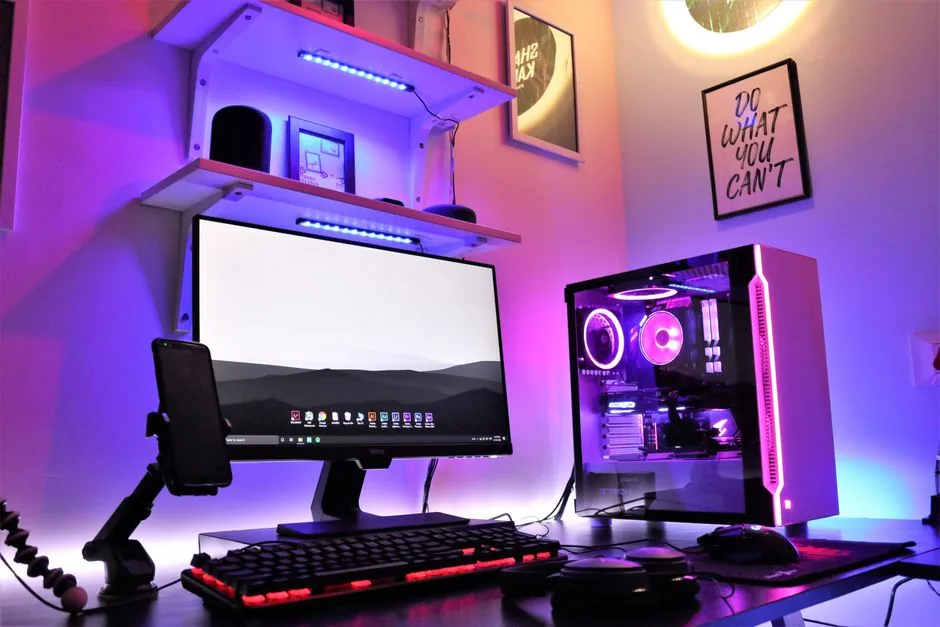
The single decision that determines whether your RGB looks cohesive is which software ecosystem you commit to. The big three are Corsair iCUE, Razer Chroma, and motherboard-native control from ASUS Aura Sync, MSI Mystic Light, or Gigabyte RGB Fusion.
Corsair iCUE and Razer Chroma are the most polished, with deep lighting effects and broad third-party support. However, they push you toward that brand’s fans and strips. Motherboard-native control is free and works with any compliant component, but the software is clunkier.
If you already have an ASUS board, for example, building around Aura Sync means your motherboard headers, RAM, and GPU can all sync with a single click. That is usually the cheapest path to a clean result.
The Core RGB Components and What They Cost
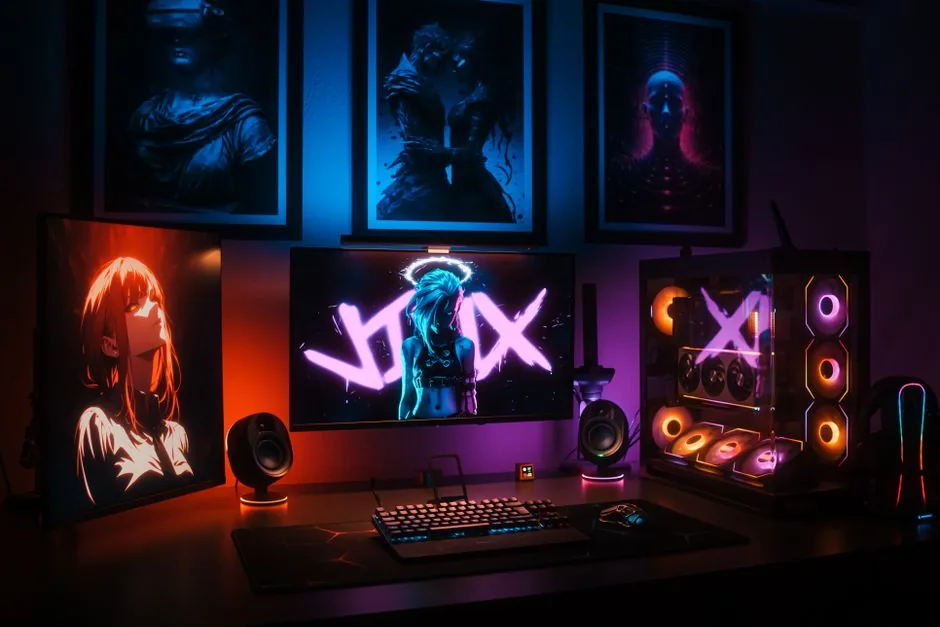
Here is a realistic parts list for a tasteful, synced setup, with typical US street prices in 2026. You do not need every item; start with the case and fans, then expand.
| Component | Example pick | Typical price | Notes |
|---|---|---|---|
| RGB case fans (3-pack) | Corsair iCUE AR120 | ~$60–$80 | Biggest visual impact |
| LED strip kit | Corsair LS100 or generic ARGB | ~$30–$50 | Behind desk and monitor |
| RGB CPU cooler | Air tower or 240mm AIO | ~$50–$120 | Performs and glows |
| RGB RAM | 32GB DDR5, 2 sticks | ~$90–$130 | Syncs with board |
| RGB motherboard | B650 / Z790 class | ~$150–$220 | The control hub |
| RGB GPU | Current-gen card | ~$300–$700 | Often already owned |
| Light diffuser channel | Aluminum channel + cover | ~$15–$25 | Turns harsh dots into glow |
| Fan/RGB controller | iCUE Commander or ARGB hub | ~$25–$55 | Sync many devices |
The RGB case fans and an LED strip behind the desk deliver about 80% of the visual effect for under $100. Everything else refines the look. In addition, a diffuser channel is the single cheapest upgrade that makes cheap strips look expensive, because it spreads the light into a smooth bar instead of harsh dots. Remember that RGB fans are still fans first. Configure the front and bottom as intake and the rear and top as exhaust, then let the lighting follow that airflow layout rather than the other way around. A glowing case that runs hot defeats the purpose, so confirm cooling before chasing aesthetics.
Pick a Palette, Not a Rainbow
Rainbow wave is fun for about a week, then it just looks noisy. A single color or a two-tone gradient always photographs better and feels calmer in a dark room.
Popular combos that actually look good include cyberpunk purple and teal, all-white on a black build, warm amber for a cozy vibe, and a single accent color like red or blue matched to your wallpaper. Whatever you choose, set every component to the same static or slow-breathing effect.
Your phone camera will also thank you. Static colors avoid the pulsing brightness that wrecks videos and clips, which matters if you plan to stream your sessions. Slow-breathing effects work too, but keep the cycle gentle. Fast strobe and wave modes read as gimmicks and make a clean room look like a moving advertisement.
Software: Where the Sync Actually Happens
Software is the make-or-break layer. Each ecosystem has its own quirks, but they all let you set colors, effects, and sync groups.
- Corsair iCUE — the most flexible, with per-LED control and realistic lighting scenes. It uses more background resources, though.
- Razer Chroma — deep game integration that lights your desk to match supported games, plus broad third-party device support.
- Motherboard utilities — free and always compatible with your board, but often clunky and limited to simpler effects.
- OpenRGB — a free, open-source alternative that controls many brands from one app, though it is less beginner-friendly than the big suites.
If you use three different brands, OpenRGB can be a lifesaver. For most people, though, sticking with one native ecosystem is simpler and more reliable. Most ecosystems also extend to peripherals, so a matching RGB keyboard and mouse from the same brand as your fans sync automatically while mismatched brands each need their own software. For a board that lights up correctly, see our best mechanical keyboard for gaming picks.
Where to Point the Light
Placement matters as much as the hardware. The goal is indirect, diffused light, not LEDs shining directly into your eyes or camera.
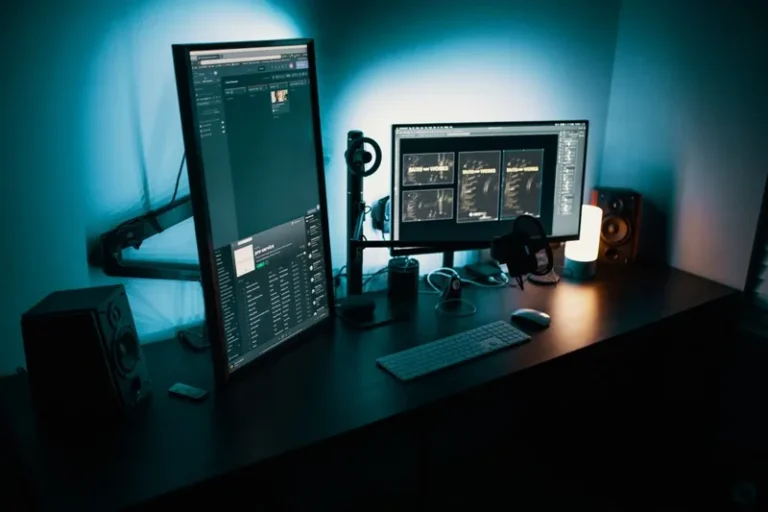
The highest-impact zones are behind the monitor (bias lighting that also reduces eye strain), under and behind the desk, and inside the case through the tempered-glass side panel. Skip strips on the front of the desk where your wrists and eyes will catch them directly.
Keep brightness moderate. A dim, even glow reads as premium, while max-brightness strips look harsh and blow out photos. Most ecosystems let you cap brightness, so do it. The same rule applies to peripherals. An rgb setup for gaming pc looks best when the keyboard, mouse, and case read as one light source rather than three competing ones. Set them to the same static color and cap brightness around 60 to 70 percent for a premium, camera-friendly glow.
Common RGB Mistakes That Ruin the Look
The biggest mistakes are easy to avoid once you know them, and they separate a clean rgb setup for gaming pc from a cluttered one.
Mixing too many ecosystems. Different software means different colors on the same desk. Commit to one and resist the urge to add a cheap strip from another brand.
Visible LED dots. Bare strips show individual diodes. A diffuser channel or placing strips so only the reflected light is visible fixes this for a few dollars.
Clashing with your decor. A neon rainbow in a wood and leather room looks out of place. Match the palette to the room, not just the PC.
Ignoring cooling for looks. Never sacrifice airflow for lighting. A case full of RGB fans that are poorly placed still throttles, and a lit-up system running hot is not a win.
Skipping cable management. Glowing light also illuminates your mess. Route and hide cables first, because RGB makes clutter more visible, not less. Our gaming desk setup ideas covers the cable side in detail.
For independent testing on fans and cooling performance, check RTINGS and PCMag’s build guides before you buy.
FAQ
Is RGB bad for your gaming PC?
No. RGB uses a few watts of power and has no meaningful effect on temperatures or lifespan. The only real downside is more cables to manage and extra software running in the background.
Can I sync RGB from different brands?
Yes, but it takes extra steps. Motherboard ARGB headers can control any compatible component, and OpenRGB can drive many brands from one free app. The simplest path is still sticking to one ecosystem from the start.
What is ARGB vs RGB?
Standard RGB lights every LED the same color at once, while ARGB (addressable RGB) controls each LED independently for effects like gradients and waves. Nearly all modern gaming gear is ARGB.
How much does a full RGB setup for gaming PC cost?
A clean, synced setup with fans, strips, and a controller runs roughly $150 to $250. The look can start with just a $60 fan pack and a $30 strip if you already have an RGB-capable motherboard.
Light It Up Without Going Overboard
An RGB setup for gaming PC succeeds through restraint, not quantity. Pick one ecosystem, match a two-tone palette, diffuse your light, and hide your cables, and the room will look professionally designed for less than $250.
Start with the case fans and desk strip, then expand only when the base looks clean. For the rest of the station, see our gaming desk setup ideas and streaming setup for gaming guides to tie it all together.