Dual Monitor Setup for Gaming: The Complete 2026 Guide
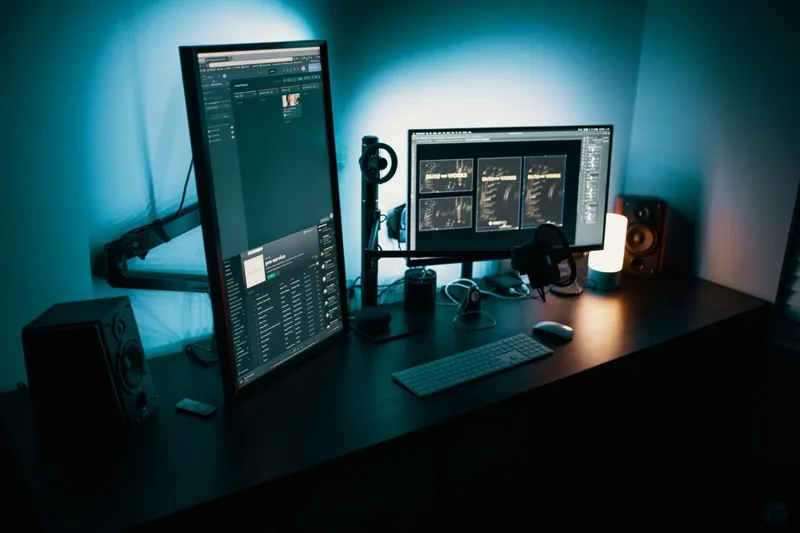
A dual monitor setup for gaming is one of the most impactful upgrades you can make to a desk, and it is not just about playing on two screens at once. Most players keep the game full-screen on their primary monitor while the second handles Discord, Spotify, a live map, a stream, or a browser. Done right, it removes the alt-tab tax that breaks focus and even crashes some older titles. Done wrong, it produces mismatched colors, janky mouse transitions, and a desk full of cable clutter.
This guide covers how to plan, connect, and mount a dual monitor setup for gaming in 2026, including which monitor pairs to buy, what cables and GPU ports you need, how to fix the common Windows headaches, and what a realistic setup costs at three budget tiers.
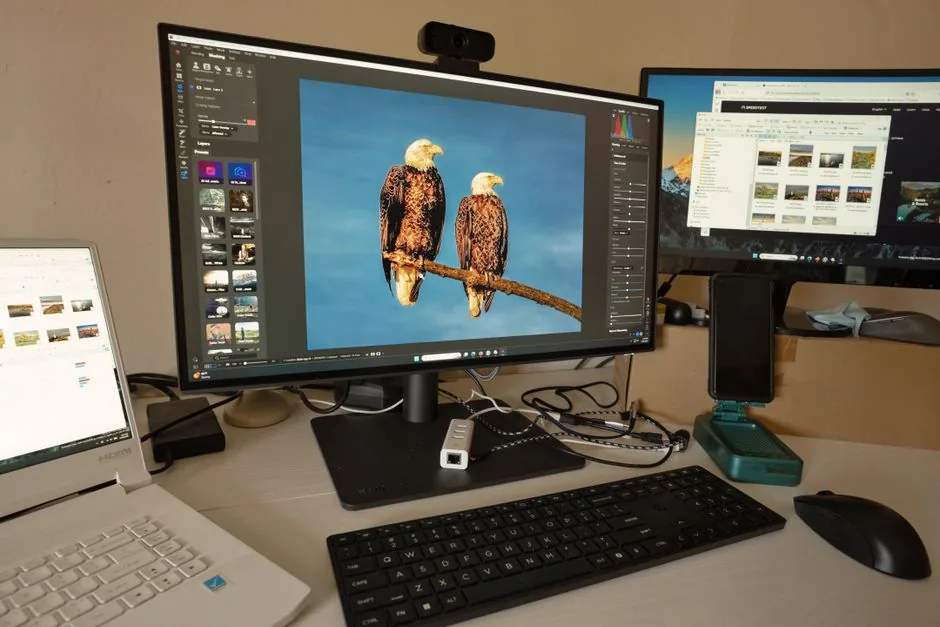
Why a Dual Monitor Setup for Gaming Is Worth It
The biggest benefit is multitasking without leaving the game. A second monitor lets you read a walkthrough, watch a tutorial, monitor stream chat, or keep Spotify visible without tabbing out and risking a crash or a dropped connection. For streamers, it is effectively mandatory — OBS and chat need their own space.
The second benefit is work magic. The same setup that serves gaming pulls double duty for productivity, which is how many players justify the cost. A side monitor for documents, spreadsheets, or a code editor makes a world of difference on workdays.
There are downsides to know. Two monitors draw more GPU power, though the effect on game frame rates from an idle second screen is usually 1 to 3 percent. They also take more desk space and add management overhead. The key is planning the pair correctly on day one.
Choosing the Right Monitors for a Dual Setup
You do not need two identical monitors, and in most cases you should not buy two identical gaming displays. The efficient approach is one great primary and one cheaper, more practical secondary.
The primary monitor
The primary monitor is where the game runs, so it earns your budget. In 2026 the sweet spot is a 27-inch 1440p display at 165Hz or higher, which pairs well with mid-range and high-end GPUs. For competitive FPS, a 24-inch 1080p 240Hz or 360Hz panel is still the fast-and-affordable route. Buy this monitor around resolution and refresh rate, not size.
The secondary monitor
The secondary monitor handles chat, guides, and media, so it should be cheap, color-accurate enough not to distract, and ideally the same physical height so windows don’t jump sizes across screens. A 24-inch 1080p 60Hz IPS panel in the $100 to $150 range is the classic pick and keeps the bezel heights close to a 27-inch primary.
Matching resolution and scaling
Windows scales by resolution, not physical size, so a 1440p and a 1080p monitor of similar physical height will show different cursor sizes at 100% scaling. Pick monitors with similar pixel density, or accept the size jump. A 27-inch 1440p panel (about 109 PPI) pairs cleanly with a 24-inch 1080p panel (about 92 PPI) when heights are close.
Recommended Monitor Pairs for 2026
Here are three proven pairings at three budget levels. For deeper per-model testing, we cross-check against RTINGS’ monitor reviews and PCMag’s gaming monitor picks.
| Tier | Primary Monitor | Secondary Monitor | Total Cost |
|---|---|---|---|
| Budget | 24″ 1080p 165Hz IPS (e.g. AOC 24G4X) | 24″ 1080p 60Hz IPS | $230–$300 |
| Mid-range | 27″ 1440p 165Hz IPS | 24″ 1080p 75Hz IPS | $400–$550 |
| High-end | 27″ 1440p 240Hz OLED | 27″ 1440p 60Hz IPS | $850–$1,300 |
The budget tier is plenty for most players and gets you the dual-screen workflow for under $300. The mid-range is the value sweet spot, adding 1440p sharpness to the primary. The high-end tier is for enthusiasts who want OLED contrast and 240Hz motion clarity on the main screen while keeping a matching-resolution side panel.
What Cables and GPU Ports You Need
This is where most first-time setups go wrong, so check before you buy anything.
Port check
Count the video outputs on your GPU first. Most gaming GPUs have three or four DisplayPort ports plus one HDMI, so running two monitors is easy. Laptops often have one HDMI and one USB-C that may or may not carry video — check whether that USB-C port supports DisplayPort alt mode before relying on it.
Cable standards
For a 1440p 165Hz primary, use DisplayPort 1.4 or better, or HDMI 2.1. DisplayPort is generally the safer default on PC because it reliably drives high refresh rates. A standard HDMI 2.1 cable also works, but an older HDMI 1.4 cable will cap a 1440p monitor to 60Hz or even 1080p. Match the cable to the highest spec monitor in the pair, and buy certified cables rather than the cheapest generic ones.
Enabling the refresh rate
Windows will not automatically run your 165Hz monitor at 165Hz. Go to Settings > System > Display > Advanced display, select the primary monitor, and set the refresh rate manually. Forgetting this step is the single most common reason a new 165Hz monitor looks no different from a 60Hz one.
Mounting a Dual Monitor Setup
A dual monitor arm is the single best quality-of-life purchase for a two-screen desk. It frees the space under the monitors, lets you align heights and angles precisely, and hides the cables inside the arm channels.
A good dual-arm gas-spring mount runs $50 to $120, with the budget arms from Huanuo and ErGear being genuinely solid at the low end and VIVO and North Bayou offering more premium adjustability. Make sure the arm is rated for your monitor weights — a 27-inch monitor plus a 24-inch side panel falls well within any decent dual mount. Check your desk thickness, too; clamp mounts need a solid lip to grip, usually 10 to 85mm.
If an arm is not in the budget, aligned stands with a cable raceway underneath still get 80 percent of the benefit for under $20.
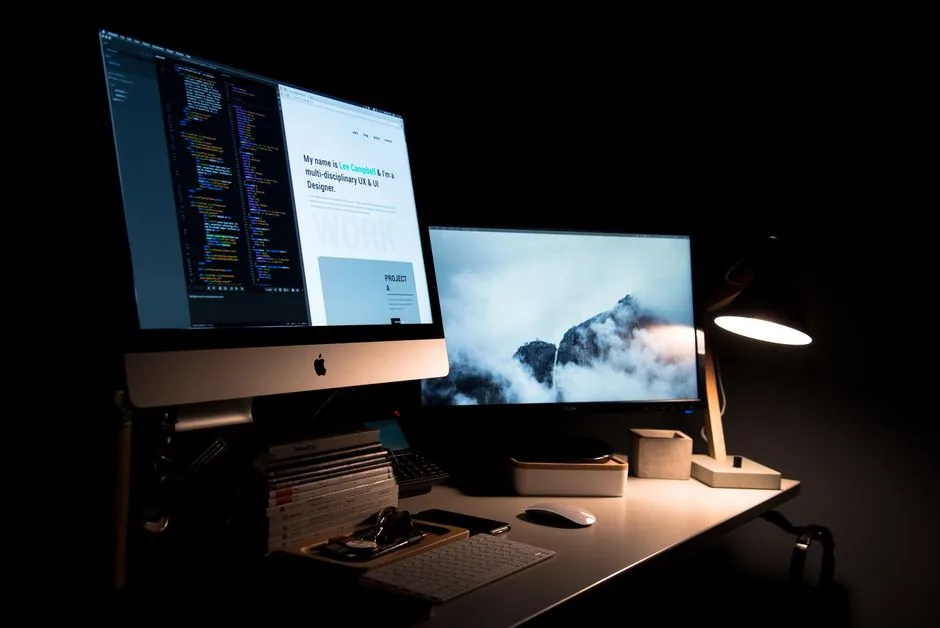
Common Dual Monitor Problems and Fixes
A few issues show up over and over. Most have quick fixes.
Monitors keep reverting to low refresh
This is almost always a cable or port mismatch. Swap to a certified DisplayPort cable and re-select the refresh rate in Advanced display settings. If the option is missing entirely, the cable or port does not support the bandwidth.
Cursor jumps or stutters between screens
Make sure the monitor layout in Windows matches your physical desk layout — drag the monitor icons in Display settings so the edges line up. A mismatch is why your cursor seems to “catch” at a screen corner.
Windows scaling looks different on each screen
Different pixel densities scale differently at the same percentage, which is unavoidable. Either accept it or match PPI more closely when you buy. Matching physical height and resolution on both panels eliminates the issue entirely.
Game monitor conflicts
When you need the absolute lowest latency for a tournament, set the game’s display mode or Windows to temporarily disable the second screen. The difference is small, but some players prefer it for competitive nights.
The rest of the battlestation matters just as much as the screens. A best gaming monitor 2026 roundup goes deeper on the primary display, and a best gaming keyboard 2026 keeps inputs clean — but a fast mouse is the bigger aim upgrade, so check the best gaming mouse 2026 picks too.
FAQ
Is a dual monitor setup for gaming worth it?
Yes, for most players. The second screen handles Discord, guides, chat, and streaming tools without alt-tabbing out of the game, and the same setup is excellent for work. The main costs are desk space, a second monitor, and a few percent of GPU overhead.
Do both monitors need to be the same?
No, and they usually should not be. Buy one strong primary for gaming and a cheaper secondary for the desktop. Matching physical height and pixel density keeps the experience smooth across screens.
Do dual monitors lower FPS?
Running an idle secondary monitor off a good GPU typically costs 1 to 3 percent performance. The hit is negligible for normal gaming, though you can disable the second display for competitive sessions if you want every frame.
What cables do I need for two monitors?
DisplayPort 1.4 or HDMI 2.1 for a 1440p high-refresh primary; the secondary can run on nearly any modern cable. Check that your GPU has enough outputs and that any USB-C port supports DisplayPort alt mode.
Conclusion
A dual monitor setup for gaming is a straightforward upgrade with a disproportionate payoff. Pick one excellent primary and one sensible secondary, match their heights, wire them with the right DisplayPort cables, enable the high refresh rate, and put the whole thing on a $50 arm. For most players, a 27-inch 1440p 165Hz primary plus a 24-inch 1080p side panel is the place to stop, at a total cost of roughly $400 to $550 before the mount.
Plan the pair first and the problems mostly sort themselves out. Once the screens are up, build out the rest of your space with our best gaming chair 2026 and best gaming headset 2026 guides.