
Ultrawide vs Dual Monitor for Gaming: Which Is Better in 2026?
The ultrawide vs dual monitor debate splits every gaming community, and for good reason — both setups cost roughly the same and both transform how you play and work. An ultrawide gives you one seamless, cinematic 21:9 or 32:9 canvas that wraps around your field of view. Dual monitors give you two independent screens that you can arrange however you like. Neither is strictly better, but one is almost certainly a better fit for how you actually spend your time. This guide compares the ultrawide vs dual monitor question across immersion, productivity, cost, desk space, and compatibility so you can decide without the guesswork, then points you to the exact panels worth buying. The answer is rarely as simple as one being better, because the right choice depends on the games you play, the work you do, and how much desk space you have.
Ultrawide vs Dual Monitor: Ultrawide Wins on Immersion
For pure gaming immersion, the ultrawide is the clear victor in the ultrawide vs dual monitor matchup. A 34-inch 3440×1440 display fills your peripheral vision in a way two separate 16:9 panels physically cannot, because there is no bezel breaking the middle of the scene. Racing sims, flight simulators, and open-world RPGs feel dramatically more engaging when the horizon extends past the edges of your vision.
Competitive shooters are a different story. Many players actually prefer a 16:9 or even smaller window for twitch shooters, and some games either do not support 21:9 natively or render stretched cutscenes. If your primary genre is Valorant, CS2, or Apex Legends, a high-refresh 16:9 monitor might serve you better than an ultrawide, whether you pair it with a second screen or not.
Productivity: Where Dual Monitors Pull Ahead
For multitasking, dual monitors are simply more flexible. Two screens give you hard physical separation — a full-screen game on one and Discord, a browser, or OBS on the other, with no window management required. When streaming, dual monitors are the default because you can keep your chat and controls visible while the game runs borderless on the primary screen.
Ultrawides compensate with software window snapping, and 32:9 super-ultrawides can even emulate two monitors through picture-by-picture mode. But that adds complexity. If you juggle a lot of simultaneous apps, the simpler tool is usually the second physical screen. Our dual monitor setup guide and our streaming setup guide both walk through how a second panel earns its keep in a busy workflow.
Cost: Closer Than Most People Expect
The prices have converged, which makes cost a wash in the ultrawide vs dual monitor decision. A good 34-inch ultrawide like the LG 34GN850 or the Gigabyte G34WQC runs $400 to $650. Two solid 27-inch 1440p 144Hz monitors cost $250 to $320 each, so $500 to $640 total. On paper, the math is nearly identical.
The real cost difference shows up in what you cannot see. An ultrawide needs a more powerful GPU to drive its extra pixels at high frame rates. Pushing 3440×1440 is noticeably harder than 2560×1440, so if your graphics card is mid-range, the dual 1440p setup may actually sustain higher frame rates in demanding titles. Here is how the two stack up side by side:
| Factor | Ultrawide (34″ 3440×1440) | Dual Monitor (2x 27″ 1440p) |
|---|---|---|
| Typical total cost | $400–$650 | $500–$640 |
| Total pixels | 4.95M | 7.37M (but split) |
| GPU load while gaming | Higher per FPS | Lower (one screen idle) |
| Desk width needed | ~32–36 in | ~48–50 in |
| Bezel in play | None | Yes (two gaps) |
| Sim-racing / RPG immersion | Excellent | Good |
| Streaming / multitasking | Good (with snapping) | Excellent |
Desk Space and Ergonomics
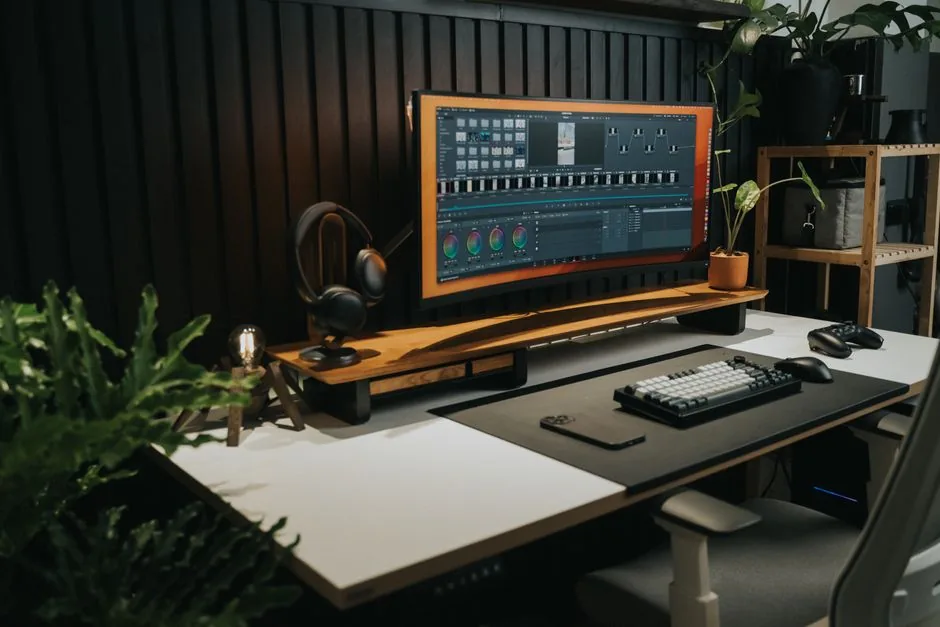
Ultrawides win on footprint. A 34-inch curved panel is about 32 inches wide and sits on a single stand. Two 27-inch monitors side by side need around 48 inches of desk width, plus a dual-arm mount if you want clean cable routing. If your desk is under four feet wide, an ultrawide is the only ergonomic choice in the ultrawide vs dual monitor argument.
Dual monitors do offer an ergonomic advantage when mounted on a gas arm: you can angle one toward you for gaming and the second off to the side for secondary tasks. This one-sided angling is comfortable for long sessions, whereas an ultrawide forces a slight head turn to see either edge clearly. Independent testing at RTINGS publishes detailed ergonomics and viewing-angle data for both form factors if you want to dig into the numbers.
Flexibility and Game Compatibility
This is where dual monitors quietly win. Every game supports 16:9 out of the box. Not every title handles 21:9 or 32:9 gracefully — many cutscenes are letterboxed or cropped, older games need mods or Flawless Widescreen, and some competitive titles intentionally restrict the aspect ratio for fairness. With dual monitors, your gaming panel stays a standard 16:9 and none of that applies.
On the flip side, a single ultrawide means one cable, one stand, and one set of color settings to calibrate. Dual setups mean matching two panels for color and brightness, which can be noticeably annoying if the two models do not match perfectly. Tom’s Hardware keeps an updated list of ultrawide monitors with the best out-of-box color accuracy if that matters to you.
Refresh Rate and Resolution Matter Too
The ultrawide vs dual monitor choice also hinges on refresh rate and resolution, which change the cost math quickly. A 34-inch 3440×1440 ultrawide with a 165Hz refresh rate and fast response time carries a real premium over a 100Hz office panel. Meanwhile, dual 27-inch 1440p displays at 165Hz can sometimes be assembled for less, because 1440p high-refresh panels are so heavily produced. Both paths reward a display with low input lag and a response time under 5ms, and none of that matters if your GPU cannot hold the frame rate in the first place. Match the resolution and refresh rate to your graphics card, not the other way around.
Which Should You Actually Choose?
Choose an ultrawide if you mostly play immersive single-player games, sims, or RPGs, and your desk is on the smaller side. You get cinematic immersion with zero bezels and a clean look. Choose dual monitors if you stream, multitask heavily, play competitive shooters, or want maximum compatibility with every game in your library.
There is a third path that many adopters land on: an ultrawide as the primary display plus a cheap vertical 1080p monitor on the side. It gives you the immersion of ultrawide with most of the multitasking benefit of a second screen, at only a modest bump in cost. Once you settle on a panel, use our best gaming monitor for 2026 rankings to pick the exact model, and our dual monitor setup guide to nail the ideal configuration.
FAQ
Is an ultrawide better than dual monitors for gaming?
For immersive single-player games and sims, yes. For competitive shooters and streaming, dual monitors usually work better. The ultrawide vs dual monitor answer depends on your primary genre.
Do dual monitors give you more screen area?
Yes, two 27-inch 1440p panels total more pixels than a 34-inch ultrawide, but the area is split across two displays rather than forming one continuous image.
Does an ultrawide need a stronger GPU?
Yes. Driving 3440×1440 costs more GPU performance than 2560×1440, so a mid-range card will deliver more frames at 2560×1440. Our best graphics card for gaming guide helps you match the GPU to your resolution.
Are ultrawides good for work?
Generally yes, but dual monitors are still easier for hard multitasking because you get physical screen separation without relying on window-snapping software.
Pick the Setup That Fits How You Play
In the ultrawide vs dual monitor decision, the tiebreaker is your real-world usage. Immersion-first gamers should go ultrawide; multitaskers and streamers should go dual. Neither choice is a mistake, and a hybrid setup exists if you want the best of both. Pair whichever you pick with the right horsepower — our best graphics card for gaming guide will make sure you are pushing those pixels without breaking a sweat.