Best Thermal Paste 2026: Top TIMs for CPU and GPU Cooling
The best thermal paste is a small, cheap detail that can shave several degrees off your CPU and GPU temperatures — and unlike most upgrades, it costs under $15. Whether you are building a new PC, remounting a cooler, or refreshing an aging GPU, the right thermal interface material (TIM) ensures heat flows efficiently from the chip into your cooler.
This guide ranks the top thermal pastes of 2026 across performance, longevity, and ease of use, and explains how to apply them correctly. For the cooler you will be mounting it on, our best cpu cooler 2026 guide pairs directly with the picks below, and the thermal test data from Tom’s Hardware informs the performance rankings.
The Best Thermal Pastes of 2026 Compared
| Thermal Paste | Type | Thermal Conductivity | Ease of Use | Longevity | Price (USD) | Best For |
|---|---|---|---|---|---|---|
| Thermal Grizzly Kryonaut | Premium | 12.5 W/mK | Moderate | ~3 years | $12 | Best raw performance |
| Noctua NT-H2 | Premium | 12 W/mK | Easy | ~4 years | $13 | Best all-rounder |
| ARCTIC MX-6 | Mid-range | 6.2 W/mK | Very easy | ~4 years | $8 | Best value |
| Thermal Grizzly Kryonaut Extreme | Enthusiast | 14.2 W/mK | Moderate | ~3 years | $18 | Extreme OC |
| Cooler Master MasterGel Pro v2 | Mid-range | 9 W/mK | Easy | ~4 years | $10 | Budget reliability |
Why Thermal Paste Matters More Than You Think
Thermal paste fills the microscopic air gaps between a chip’s heat spreader and your cooler’s base plate. Air is a terrible conductor, so even a perfect-looking mount leaves hot spots without a good TIM. The difference between a mediocre paste and a top-tier one is typically two to four degrees under load — enough to matter when you are chasing boost clocks or running a high-power CPU near its thermal limit.
For most builders, the practical takeaway is simple: buy a quality paste once, apply it correctly, and it will outperform whatever dried-out stock compound your cooler ships with. It is the cheapest degree-per-dollar upgrade you can make.
Thermal Grizzly Kryonaut — Best Raw Performance
Kryonaut remains the enthusiast benchmark in 2026. Its 12.5 W/mK conductivity and low viscosity deliver the best temperatures of any widely available paste, which is why it is the default for overclockers and water-cooled builds chasing the last degree. The trade-off is a slightly thicker consistency that takes a steady hand to spread, and a reapplication cycle of roughly three years under sustained high heat.
Noctua NT-H2 — Best All-Rounder
The Noctua NT-H2 is the easiest premium paste to recommend. It lands within a degree or two of Kryonaut, applies more forgivingly, and holds its performance for years. If you want one tube that just works across CPUs, GPUs, and laptops, this is it. It also ships with Noctua’s excellent coolers, though the standalone tube is the same formula.
ARCTIC MX-6 — Best Value
At around $8, ARCTIC MX-6 is the price-to-performance champion. It runs a couple of degrees warmer than the premium pastes but costs roughly a third as much and is extremely forgiving to apply, making it ideal for first-time builders. For a gaming CPU like the Ryzen 7 9800X3D — which is efficient and rarely saturates its cooler — MX-6 is genuinely all most people need.
When to Consider Kryonaut Extreme or Liquid Metal
Kryonaut Extreme pushes conductivity to 14.2 W/mK for serious overclocking, but the real step-change for extreme cooling is liquid metal, which can drop temperatures several more degrees. Liquid metal is electrically conductive and tricky to apply, however, so it is strictly for experienced builders — and never on bare aluminum. For 99% of users, a premium paste like Kryonaut or NT-H2 is the sensible ceiling.
How to Apply Thermal Paste Correctly
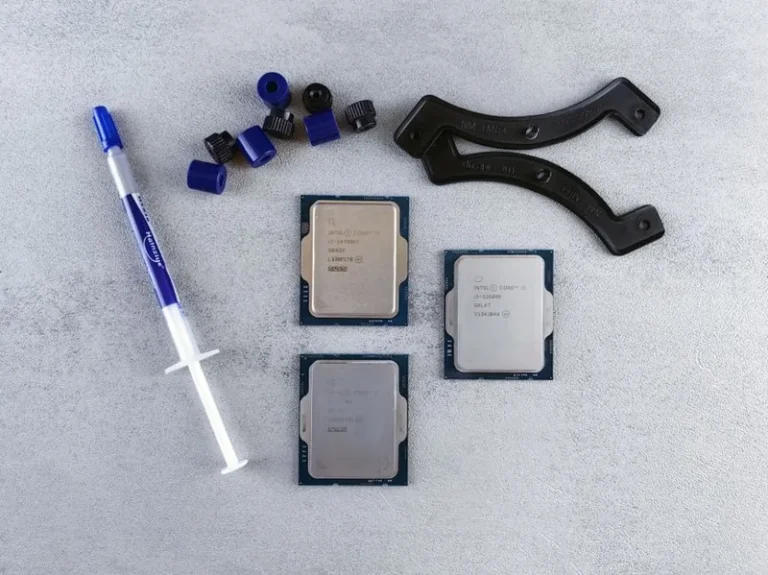
- Amount: a pea-sized dot in the center, or a thin X pattern. Less is more — the mounting pressure spreads it evenly.
- Coverage: the paste should cover the center of the heat spreader where the die sits; perfect edge-to-edge coverage is unnecessary.
- Remount properly: tighten the cooler in an X pattern with even pressure, then avoid removing it afterward (re-mounting traps air).
- Clean old paste first: use isopropyl alcohol and a lint-free cloth on both the chip and cooler base before applying fresh compound.
If you are doing a full build, apply the paste as one step in our how to build a gaming pc step by step walkthrough. Getting this step right is the difference between a cooler that performs as rated and one that underperforms by several degrees.
Conductive vs Non-Conductive Paste: What You Must Know
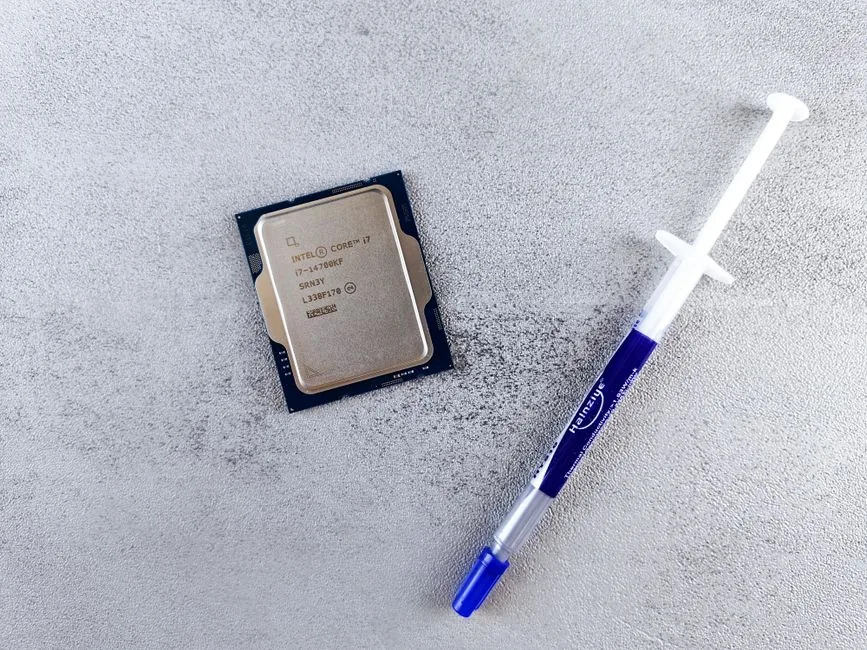
One of the most important distinctions in thermal paste is electrical conductivity. Most standard pastes, including Kryonaut, NT-H2, and MX-6, are non-conductive, meaning a small overflow onto the motherboard is harmless — you just wipe it up. This makes them the safe default for every skill level.
Conductive compounds and liquid metal, by contrast, can short out a board if they bridge contacts. Liquid metal in particular is highly conductive and mobile, so it demands careful masking around the die. For the overwhelming majority of builders, a non-conductive premium paste is the right tool, and the risk of liquid metal is not worth a couple of extra degrees.
Common Thermal Paste Mistakes to Avoid
Even the best thermal paste underperforms if it is applied poorly. The mistakes we see most often:
- Too much paste: more is not better. A thick layer actually insulates instead of conducting, and it makes a mess. A pea-sized dot is plenty.
- Not cleaning the old compound: fresh paste over old, hardened TIM creates an uneven layer. Always clean both surfaces with isopropyl alcohol first.
- Re-mounting after lifting the cooler: once you remove a cooler, the paste has cured and air has entered — clean and reapply rather than pressing it back down.
- Uneven mounting pressure: a cooler tightened on one side first makes a wedge-shaped layer. Tighten in an X pattern, a little at a time.
- Using paste with a pre-applied pad: some coolers ship with paste pre-applied. Adding more on top creates a double layer that hurts performance.
Avoid these, apply a small amount evenly, and the best thermal paste you chose will deliver the temperature drops it is rated for.
Thermal Paste for Laptops and GPUs: What Changes
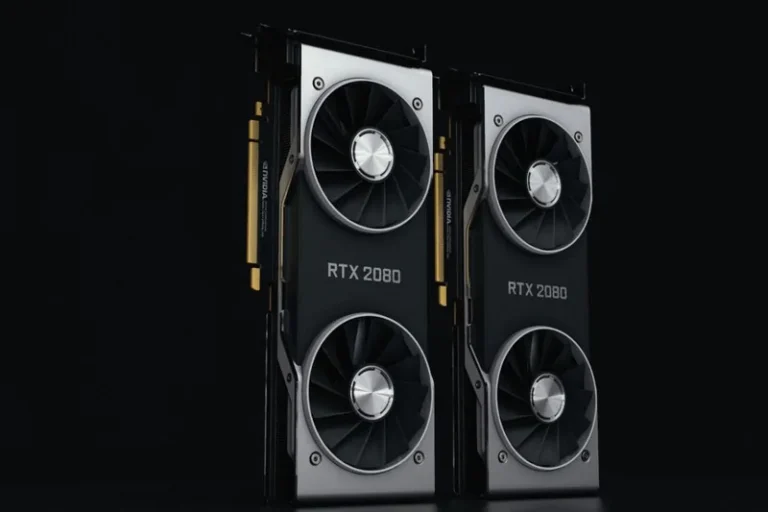
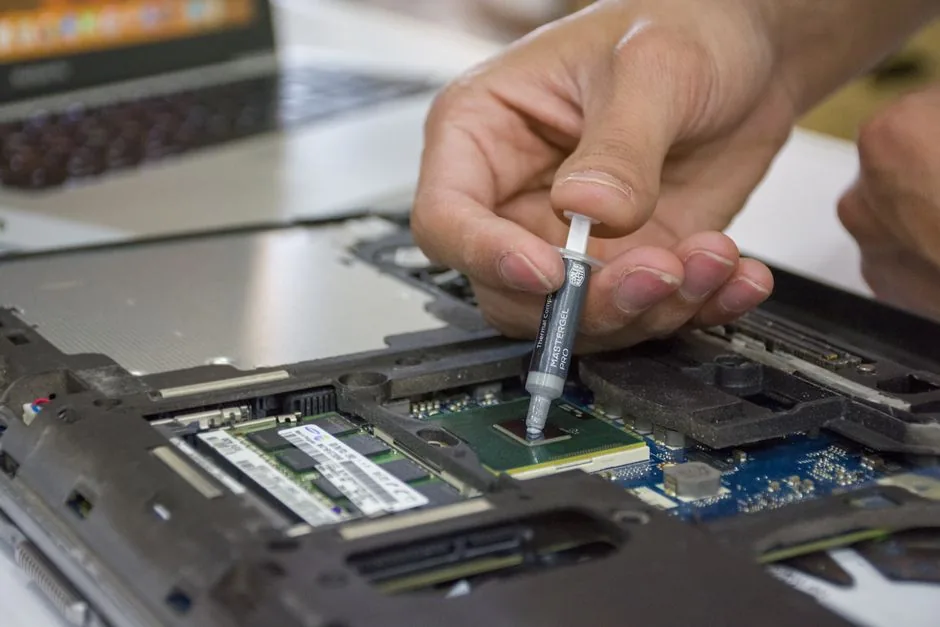
The same paste works across desktops, laptops, and graphics cards, but the technique differs slightly. Laptop CPUs and GPUs are bare dies without an integrated heat spreader, so they need full, even coverage rather than a single center dot — an uncovered corner of the die can overheat. GPUs are similar, with the added caution that the die sits among tiny surface-mount components, so a thin, controlled layer and careful cleanup matter more. Because laptop cooling is constrained, a high-performance paste delivers a more noticeable improvement there than on a well-cooled desktop, making it a worthwhile refresh for an aging machine running hot and loud.
FAQ
How often should I replace thermal paste?
A quality paste like NT-H2 or MX-6 typically lasts four years or more. Replace it if you remove the cooler, notice rising temperatures, or are refreshing a GPU that’s several years old.
Does expensive thermal paste make a big difference?
The gap between budget and premium paste is usually two to four degrees under load. That matters for overclocking and high-power CPUs, but is minor for most efficient gaming chips.
Can I use the same thermal paste on a GPU?
Yes. The same paste works on CPUs and GPUs, but GPU dies are bare (no heat spreader), so apply a thin, even layer and be careful not to short surrounding components.
Is liquid metal worth it?
Only for experienced builders chasing maximum cooling on a CPU or GPU with a compatible cooler. It is electrically conductive and risks damaging components if applied carelessly.
Conclusion
The best thermal paste for most people in 2026 is the Noctua NT-H2 for its balance of performance and ease of use, with Thermal Grizzly Kryonaut as the raw-performance pick for overclockers and ARCTIC MX-6 as the unbeatable value option. Apply a pea-sized amount, mount your cooler evenly, and a $12 tube will keep your CPU and GPU cooler for years. For the cooler and chip to pair it with, see our best cpu cooler 2026 and best cpu for gaming 2026 guides.