Gaming PC Build How To: A Step-by-Step Guide for Beginners
A gaming PC build how to guide does not need to be intimidating. The process breaks down into a dozen small steps, each one manageable on its own, and the whole thing usually takes a first-timer two to four hours. Follow this in order, and you will post to BIOS on your first attempt more often than not.
The single biggest beginner mistake is forgetting that PCs are modular and forgiving. Almost nothing here requires force, and nearly every connector only fits one way. Take your time, keep a screwdriver and some zip ties handy, and work on a non-carpeted surface to avoid static.
Gaming PC Build How-To: What You Need Before You Start
Gather these tools before touching any part: a Phillips-head screwdriver, a small bowl for screws, zip ties for cable management, and optionally a flashlight. An anti-static wrist strap is cheap insurance, though touching the metal case frequently works almost as well.
Your parts checklist should include the CPU, motherboard, memory, graphics card, storage drive, power supply, case, and CPU cooler, along with a Windows 11 installer on a USB stick. For a concrete list with prices, see our best budget gaming pc build under 1000, which gathers all the parts you need under one ceiling.
Step 1: Install the CPU
Lay the motherboard on its box for a stable, static-safe work surface. Lift the CPU socket lever, match the golden triangle on the CPU to the triangle on the socket, and set the chip in place. It will drop in with zero force if it is aligned.
Close the lever gently until it tucks under the bracket. No paste yet; that comes with the cooler. If the chip does not seat, stop and recheck the alignment rather than pressing harder.
Step 2: Mount the Memory and M.2 Drive
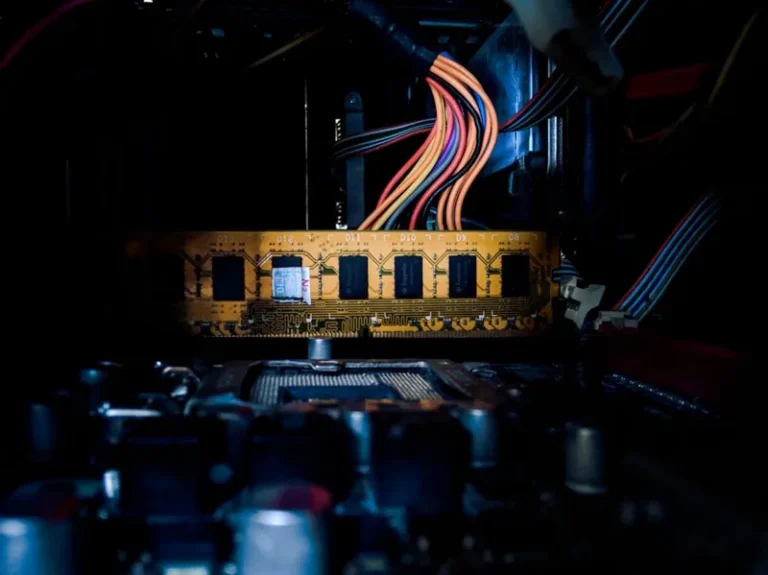
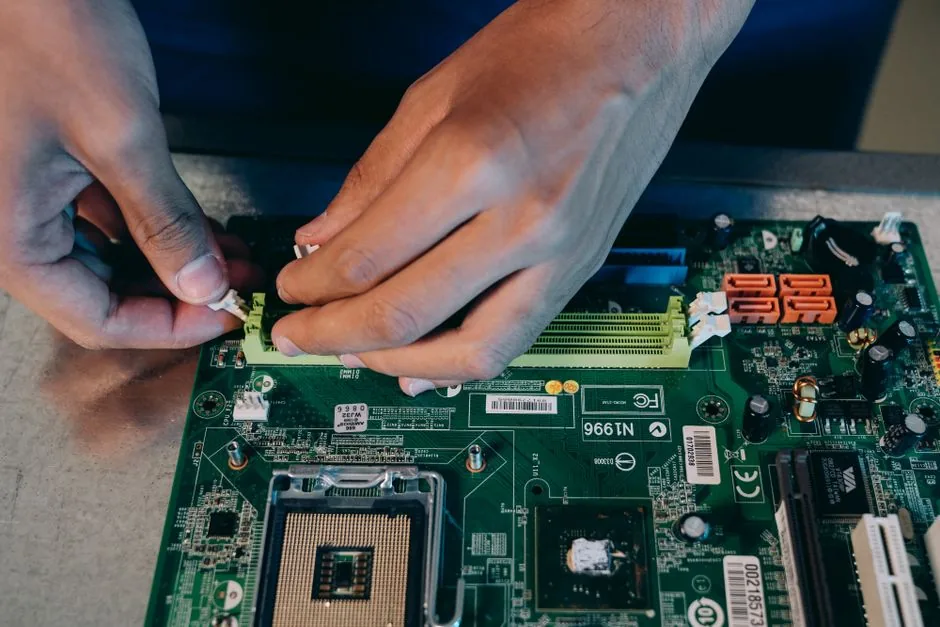
Memory sticks click into the two slots your motherboard manual prioritizes, usually the second and fourth from the CPU. Align the notch, press firmly until the side clips snap shut on their own. If the clips do not close, the stick is not fully seated.
A modern M.2 drive slides into its slot at a shallow angle, then screws flat. Many B850 boards include a tool-free latch as well. This is the easiest part of the whole build, so do it now while the board is still outside the case.
Step 3: Install the CPU Cooler
If you are using the stock cooler that ships with some CPUs, it simply clips onto the socket brackets. For a tower air cooler, install the backplate and mounting brackets first, apply a pea-sized dot of thermal paste in the center of the CPU, and tighten the cooler down in a diagonal pattern.
The paste spreads itself under pressure, so resist the urge to spread it like peanut butter. An AIO liquid cooler mounts to the same brackets, with the radiator screwed to the top or front of the case later.
Step 4: Put the Motherboard in the Case
Screw the motherboard’s I/O shield into the rear of the case first, then lower the board onto its standoffs. These standoffs must line up with the board’s screw holes before you secure it. A missing standoff can press against the board’s back and short it.
Use every screw hole the board offers and tighten them snug, not hard. The board should feel completely rigid and never flex when you push on a corner.
Step 5: Install the Power Supply and Graphics Card
Slide the power supply into its bay with its fan facing the case’s vent. Screw it in, then route its cables roughly toward where they will end. The heavy 24-pin cable goes to the motherboard’s right edge; the CPU power cable runs to the top-left corner.
The graphics card goes into the top PCIe slot after you remove the case’s rear slot covers. Push until the slot latch clicks, then secure the card with the case screws. This is the heaviest component, so get both screws in even if it feels secure.
Step 6: Wire It Up and Turn It On
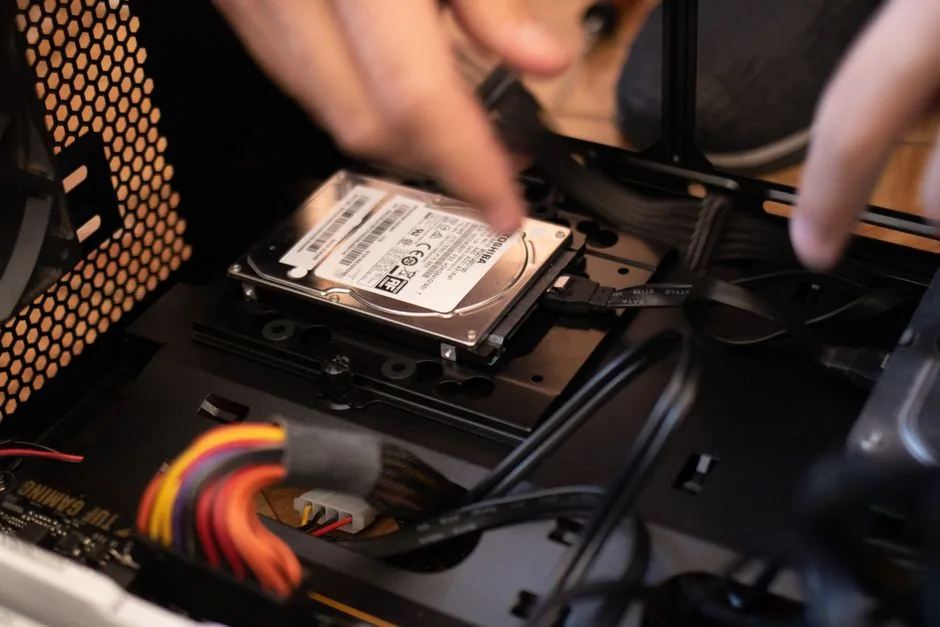
Connect the 24-pin, the CPU power, the GPU’s PCIe power lead, the SATA or M.2 (already done), and the front-panel headers. The front-panel wires, labeled power switch and reset, are the fiddly part, and your manual’s pinout diagram is the shortcut here.
Before closing the side panel, do a bare test boot: plug in the monitor, keyboard, and power, then hit the power button. Fans spin, lights come on, and a BIOS screen appears. If nothing happens, recheck the power switch header and the 24-pin connection in that order.
Common First-Build Mistakes
Every gaming pc build how to guide repeats the same warnings for a reason. The most common failure is the power switch header on the wrong two pins, so the button simply does nothing. Second is forgetting the CPU power cable, which powers the processor but is easy to miss behind the top corner. Third is a memory stick not fully clicked in, which gives you a red debug light instead of a post.
None of these damage anything. A post failure is almost always a loose or wrong cable, not a dead part, so stay calm and reseat rather than replacing.
Install Windows and Drivers
With the PC posting to BIOS, the hardware work is done. Insert your Windows 11 USB stick, set it as the boot device in BIOS if prompted, and follow the installer. Choose a custom install, point it at your NVMe drive, and let it finish.
Once Windows boots, the first job is drivers. Download the chipset driver from AMD or Intel, then the latest GPU driver from NVIDIA or AMD’s website. Windows will install generic drivers on its own, but the real ones unlock full performance and features like DLSS and FSR.
Motherboard utilities are mostly optional. Most people need only the chipset and GPU drivers, plus Windows Update for everything else. Skip the bundled bloatware that some board vendors push; it adds nothing to gaming performance.
A quick visit to Windows Update afterward usually pulls the remaining essentials, including the latest DirectX and .NET runtimes that many games expect.
Test and Stress-Test Your Build
Before you call it done, run a quick validation pass. Check your RAM speed in Task Manager to confirm it is running at 6000 MT/s rather than the default 4800, which requires enabling EXPO or XMP in BIOS. Then watch temperatures while gaming: a CPU under 85°C and a GPU under 80°C under load is a healthy range.
A stress test such as Cinebench, or simply a long gaming session, will expose instability early. If it crashes, the culprit is usually memory, so try the other EXPO profile or a modest voltage bump. Most builds pass on the first try, and the ones that do not are almost always a one-setting fix.
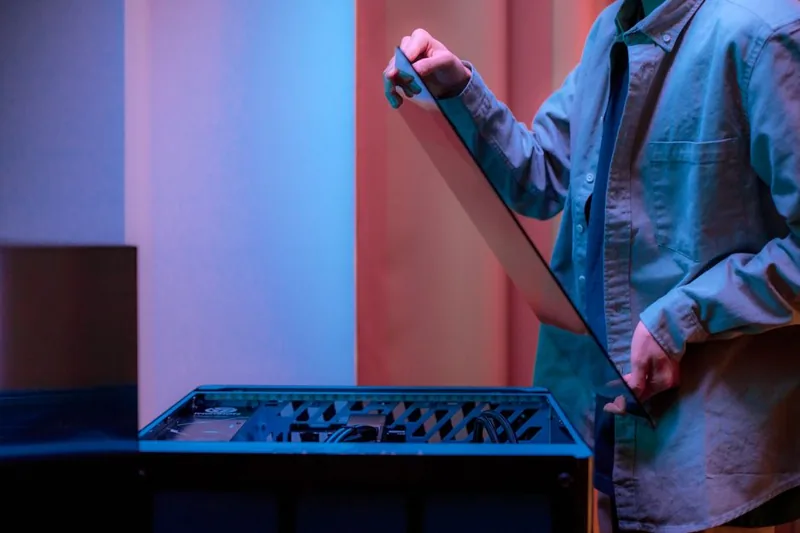
The final step is cable management and the side panel. Tuck the excess, secure the visible runs with zip ties, and mount the glass last. A tidy build runs cooler and is far easier to work on when you upgrade later, which you will, because building once usually turns into building again. No gaming pc build how to guide can fully capture how satisfying that first successful post feels, but it is the moment that turns a beginner into a builder.
Frequently Asked Questions
How long does a gaming PC build take?
A first-timer usually needs two to four hours. Experienced builders finish in under an hour. Budget a relaxed afternoon, and stop to check the manual whenever a connector feels ambiguous.
Do I need to buy thermal paste separately?
Usually not. Most coolers include a tube or have paste pre-applied. A pea-sized dot on the CPU is enough, and one small tube covers several builds.
What if my PC won’t turn on?
Check the power switch header, the 24-pin connection, and the CPU power cable, in that order. These three account for the vast majority of no-power first builds, and none of them requires replacing anything.
Is building a gaming PC hard for a beginner?
No. It is closer to assembling flat-pack furniture than to electronics repair. Every cable is keyed, every part only seats one way, and the manual diagrams each step.
Can I build without a dedicated graphics card?
Only if your CPU has integrated graphics, which many Ryzen and Intel chips do. That gets you a working PC for now, but you will want a dedicated card for real gaming performance later.
You Can Do This
This gaming pc build how to guide is the whole process in order, and none of it is beyond a careful beginner. Start with a parts list, watch one build video that matches your case, and take it step by step. When you are ready to pick components, our best gaming pc build 2026 list is a proven starting point, and how much does it cost to build a gaming pc helps you set a realistic budget first. PC Gamer and Tom’s Hardware both post visual build guides worth watching alongside this one.