How to Know If You Need a GPU Upgrade: 9 Signs to Check
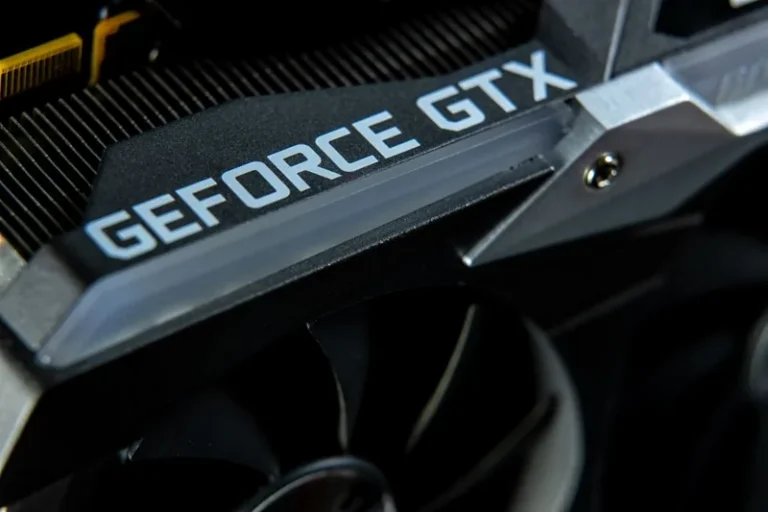
Figuring out how to know if you need a GPU upgrade usually starts with one annoying symptom: a game that used to run at 60 FPS now dips below 40, or a new title that stutters the moment the action gets busy. Your graphics card is the single most important part for gaming performance, and it is also the part most people keep the longest. A GTX 1060 or RX 580 from 2016 still sits in plenty of PCs today, and in many cases it simply cannot keep up with 2026 games anymore.
The good news is that you do not have to guess. A handful of clear signals—low frame rates, VRAM warnings, stutter, and a constantly pegged GPU—will tell you whether your card is the problem or whether the bottleneck lives somewhere else in your system. This guide walks through nine signs, a few quick tests you can run today, and the cases where spending $400 on a new card is genuinely worth it.
9 Signs Your GPU Is Holding You Back
Most people wait too long to replace their graphics card because the decline is gradual. Here are the warning signs, roughly ordered from the most obvious to the most subtle.
1. Frame Rates Drop Below Playable Levels
If a game you used to run at 60 FPS now averages 30 to 45 FPS at the same settings, the card is usually the culprit. Competitive shooters like Counter-Strike 2 and Valorant feel awful below 60 FPS, and single-player games start to stutter visibly below 30. Turn the resolution down one notch. If performance barely improves, the GPU is maxed out.
2. You Have to Set Games to Low or Medium
When a new release demands “Low” or “Medium” just to hold 1080p at 30 FPS, your card is past its useful life. The RX 580 and GTX 1060, for example, launched as solid 1080p cards, but titles released in 2025 and 2026 now expect far more shader power.
3. VRAM Warnings and Texture Pop-In
Modern games flag low video memory. If you see a “VRAM limit exceeded” message or textures that pop in late and look blurry, your card does not have enough memory. Cards with 4 GB or 6 GB of VRAM are increasingly the reason a game runs poorly, even when raw performance is fine.
4. Stutter and Frame-Time Spikes
Stutter is different from low FPS. Your average frame rate may look fine while the game hitches every few seconds. This often happens when the GPU runs out of VRAM and has to swap data, or when it cannot keep up with sudden scene changes. Frame-time graphs in tools like MSI Afterburner will show big spikes.
5. High GPU Usage at Idle or in Menus
Open Task Manager (Ctrl+Shift+Esc) and check GPU usage. If the card sits at 95 to 100% while gaming, it is the limiting factor. That is normal for gaming, but if usage is pegged even in menus or while watching video, something is wrong with drivers, cooling, or the card itself.
6. Overheating and Loud Fan Noise
Older cards run hot and loud. If your GPU hits 85°C and the fans sound like a jet engine, the thermal paste has likely dried out and the cooler is clogged. Some cards can be cleaned and re-pasted, but if the card is several generations old, the heat is often a sign it is time to move on.
7. Driver Support Is Ending
Both NVIDIA and AMD eventually drop driver support for older cards. When your card moves to “legacy” status, you stop getting game-ready drivers, which means worse performance and occasional bugs in new titles. That is a strong signal that an upgrade is overdue.
8. New Features Are Missing
Ray tracing, DLSS, FSR, and frame generation are now standard. If your card cannot use any of them, you are leaving a lot of performance on the table. A card that lacks hardware ray tracing cannot run several 2026 games at acceptable quality at all.
9. Your Monitor Outgrew Your Card
If you bought a 1440p or 4K monitor but still use an old GPU, the card cannot feed that display. The jump from 1080p to 1440p alone requires roughly 78% more pixels, so a card that was fine at 1080p will struggle the moment you upgrade your screen.
How to Know If You Need a GPU Upgrade: Run These Quick Tests
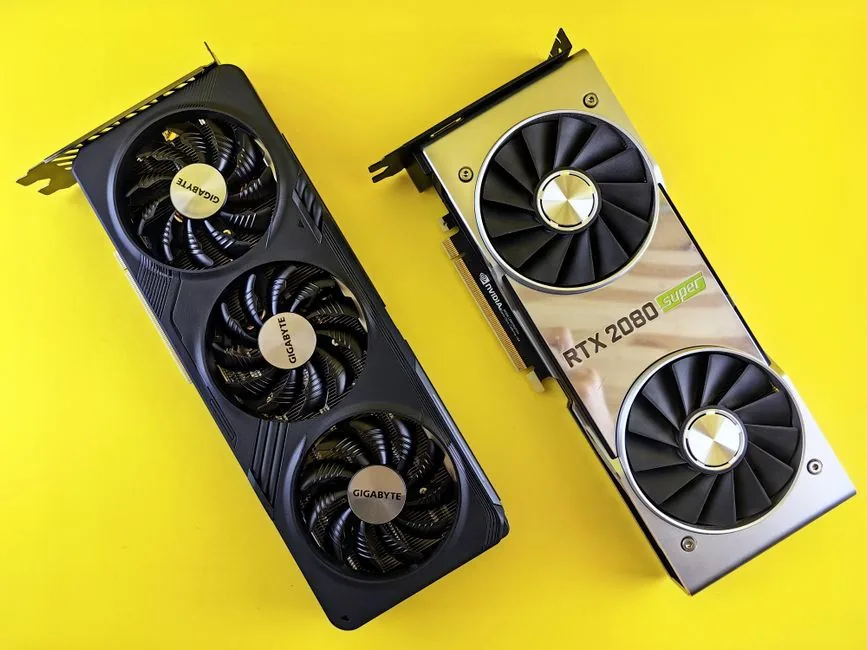
Before you spend money, confirm the GPU is actually the bottleneck. These three tests take about 20 minutes total and give you a clear answer.
Test 1: Check GPU vs CPU Usage
Run a demanding game and open Task Manager, or use MSI Afterburner with the on-screen display. If GPU usage is pinned at 95% or higher while the CPU sits at 50% or below, the graphics card is your limit. If the CPU is pegged and the GPU is not, your processor is the problem instead.
Test 2: Lower the Resolution
Drop your resolution from 1440p to 1080p, or from 1080p to 720p. If frame rates jump dramatically, the GPU was the limiting factor. If they barely move, the CPU or memory is holding things back, and a new GPU will not help much.
Test 3: Run a Benchmark
Use a free benchmark such as 3DMark Time Spy or Unigine Superposition. Compare your score to the average for your card model. If your score is within 10% of the average, the card is working normally and simply too old. If it is far below, you may have a driver or cooling issue worth fixing first.
Check Your Games’ Recommended Requirements
The fastest sanity check is to read the system requirements for the games you actually play. Developers publish “minimum” and “recommended” specs, and recommended specs usually target 60 FPS at 1080p on medium-to-high settings.
If your card is below the recommended GPU for a game you want to play, an upgrade will fix the experience. If your card is above the recommended spec and you still get poor performance, the problem is elsewhere—your CPU, RAM, storage, or a thermal issue.
For a broader view of which cards handle 1440p well right now, see our guide to the best graphics card for 1440p gaming. If you are also running an older processor, check our roundup of the best budget CPU for gaming before you buy.
GPU vs CPU: Which One Is Actually the Bottleneck?
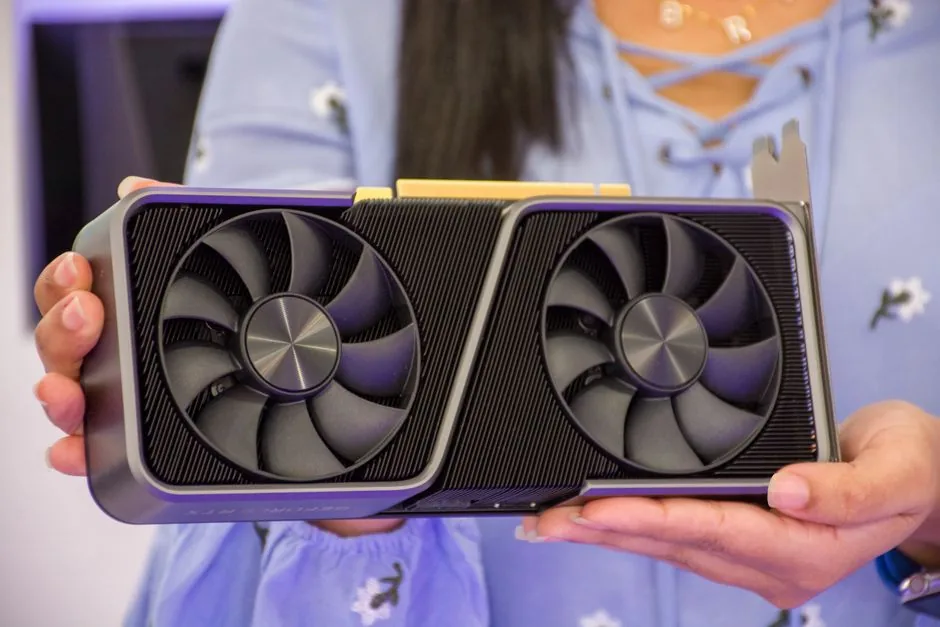
This is the most common confusion in PC upgrades. The symptoms overlap, but the fixes are completely different.
A GPU bottleneck shows up as low frame rates at high resolution and settings, with the graphics card at 100% usage. The fix is a new GPU. A CPU bottleneck shows up as stutter, frame drops in busy scenes, and low GPU usage, often at 1080p with high FPS. The fix is a new processor, not a graphics card.
You can have both. An old quad-core CPU paired with a new RTX 5060 will waste the card’s potential in many games. If your whole system is older than roughly six years, the honest answer may be a platform upgrade rather than just a GPU swap.
How Much Performance a New GPU Adds
A GPU upgrade is one of the most reliable ways to lift gaming performance. Moving from a GTX 1060 to an RTX 5060 Ti, for example, typically more than doubles frame rates at 1080p and makes 1440p playable at high settings. Moving from a GTX 1080 to an RX 9070 XT can triple performance in rasterized titles and unlock ray tracing.
The cost of a meaningful upgrade in 2026 ranges from about $250 for an entry-level card to $500 to $700 for a high-refresh 1440p card. For most people, the sweet spot is the $300 to $500 range, where cards like the RTX 5060 Ti, RX 9060 XT, and Intel Arc B580 live.
If you are unsure whether now is the right moment, read our guide on when to upgrade your graphics card for the best timing. Memory also matters more than people realize, so our DDR4 vs DDR5 gaming comparison is worth a look if your platform is getting old.
When a GPU Upgrade Is Not Worth It
Sometimes the right answer is to not upgrade at all. Here are the cases where your money is better spent elsewhere.
- Your monitor is the limit. If you game at 1080p 60 Hz, a $500 card is overkill. Upgrade the monitor first.
- Your CPU or RAM is the bottleneck. A new GPU will not fix stutter caused by an old processor or a single stick of slow memory.
- You only play esports titles. Valorant, CS2, and League of Legends run on modest hardware. A GTX 1660 Super still handles them at high frame rates.
- You play older or indie games. If your library is five years old, your current card may still be perfectly adequate.
Related Guides
For independent benchmarks and reviews, see the latest hardware testing.
Frequently Asked Questions
How do I check if my GPU is the bottleneck?
Open Task Manager while gaming and check GPU usage. If it sits at 95 to 100% and your CPU is much lower, the GPU is your limit. Lowering resolution and watching FPS is a second quick test.
How long should a graphics card last?
Most gamers replace their GPU every four to six years. A high-end card can stay relevant longer, while a budget card bought years ago will age faster as games demand more.
Is 4GB of VRAM enough for gaming in 2026?
Generally no. 4 GB struggles with new titles even at 1080p. Aim for at least 8 GB for 1080p, and 12 GB or more if you plan to play at 1440p or use high-resolution textures.
Can I upgrade just the GPU, or do I need a new PC?
You can often upgrade just the GPU if your power supply is strong enough and your CPU is not too old. Check your PSU wattage and the new card’s recommended power before you buy.
Will a new GPU make my old games faster?
Yes, in most cases. A faster GPU raises frame rates and lets you push higher settings and resolution, even in older titles, as long as the CPU is not the limiting factor.
Conclusion
Knowing how to know if you need a GPU upgrade comes down to reading a few clear signals: low frame rates, VRAM warnings, constant 100% GPU usage, and games that no longer meet their recommended specs. Run the quick tests above, confirm the card is the bottleneck, and then pick a card that matches your monitor and your budget.
If your card is several generations old and struggling with the games you actually play, an upgrade is usually the best money you can spend on your PC. Start with our best graphics card for 1440p gaming guide, and pair it with the right processor from our best budget CPU for gaming list to avoid creating a new bottleneck.